 Server Wrapped
How to see your Discord server's activity.
There are two ways: Discord's built-in Server Insights, or a bot. Here's what each one gives you, and how to get an activity recap in under two minutes.
Option 1: Discord Server Insights
Discord shows Server Insights in Server Settings for eligible community servers (Discord sets the rules on who gets it). It's a dashboard for admins: growth, engagement and retention charts.
Good for the admin team. But members never see it, and it doesn't tell your server's story.
Option 2: a bot, in two minutes
- Add Server Wrapped and press Authorize. No Administrator needed.
- Optional: run
/wrapped-setupto pick channels and a theme. Check access tells you if Bowbit can't read a channel and how to fix it. - Type
/wrapped, pick a range, tap Server.
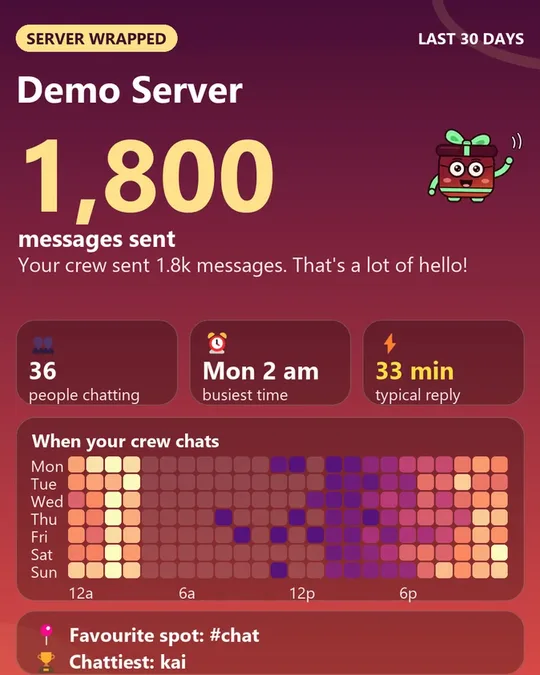
You get messages, busiest hour, reply speed and an activity heatmap, as a GIF everyone sees. Works in any server, any size.
Go deeper with the Server Report
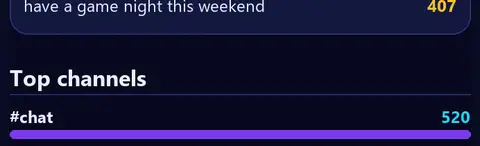
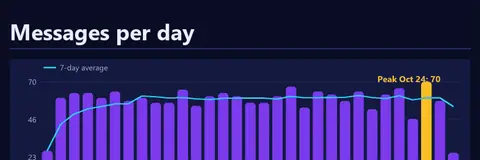
Pro (coming soon) adds the Server Report: best time to post, biggest day, top channels ranked, unanswered questions, mood, and what members want more of.
Quick answers
How do I see activity in my Discord server?
Use Discord's Server Insights if your server has it, or add Server Wrapped and type /wrapped for messages, busiest hour, reply speed and a heatmap.
Can I see which hour my Discord server is most active?
Yes. The Overview card shows your busiest hour and a heatmap of activity across the week.
Do I need a big server?
No. Server Wrapped works in any server. If a range was too quiet, the card says so and you can pick a longer one.
More: the 2-minute guide, Privacy Policy, or ask in the support server.
